Client Portal
Learn how to share estimates with your clients and track approvals with the Client Portal.
What is the Client Portal
The Client Portal gives your clients a dedicated space to review and respond to your proposals without needing access to your Inspec workspace.
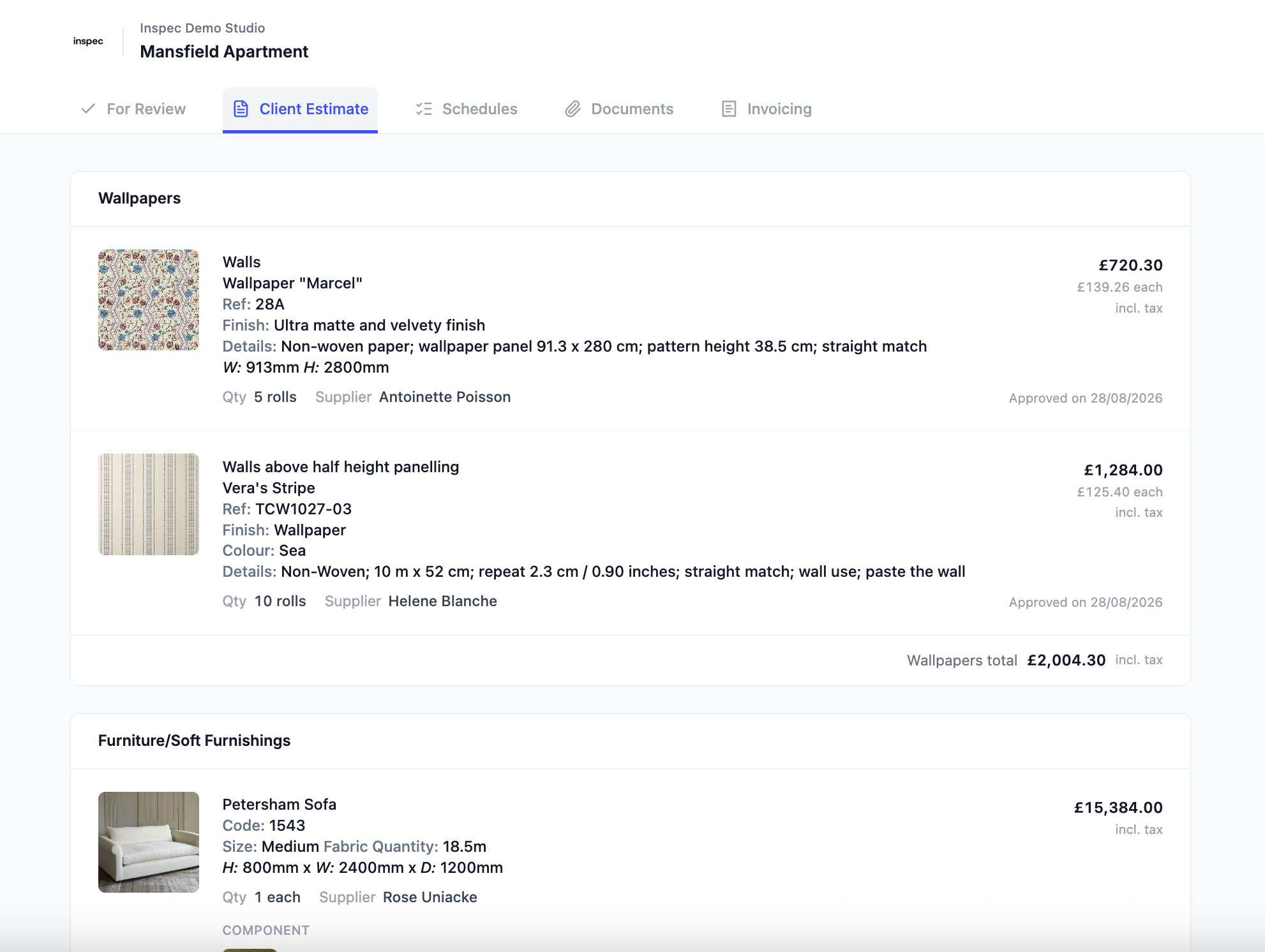
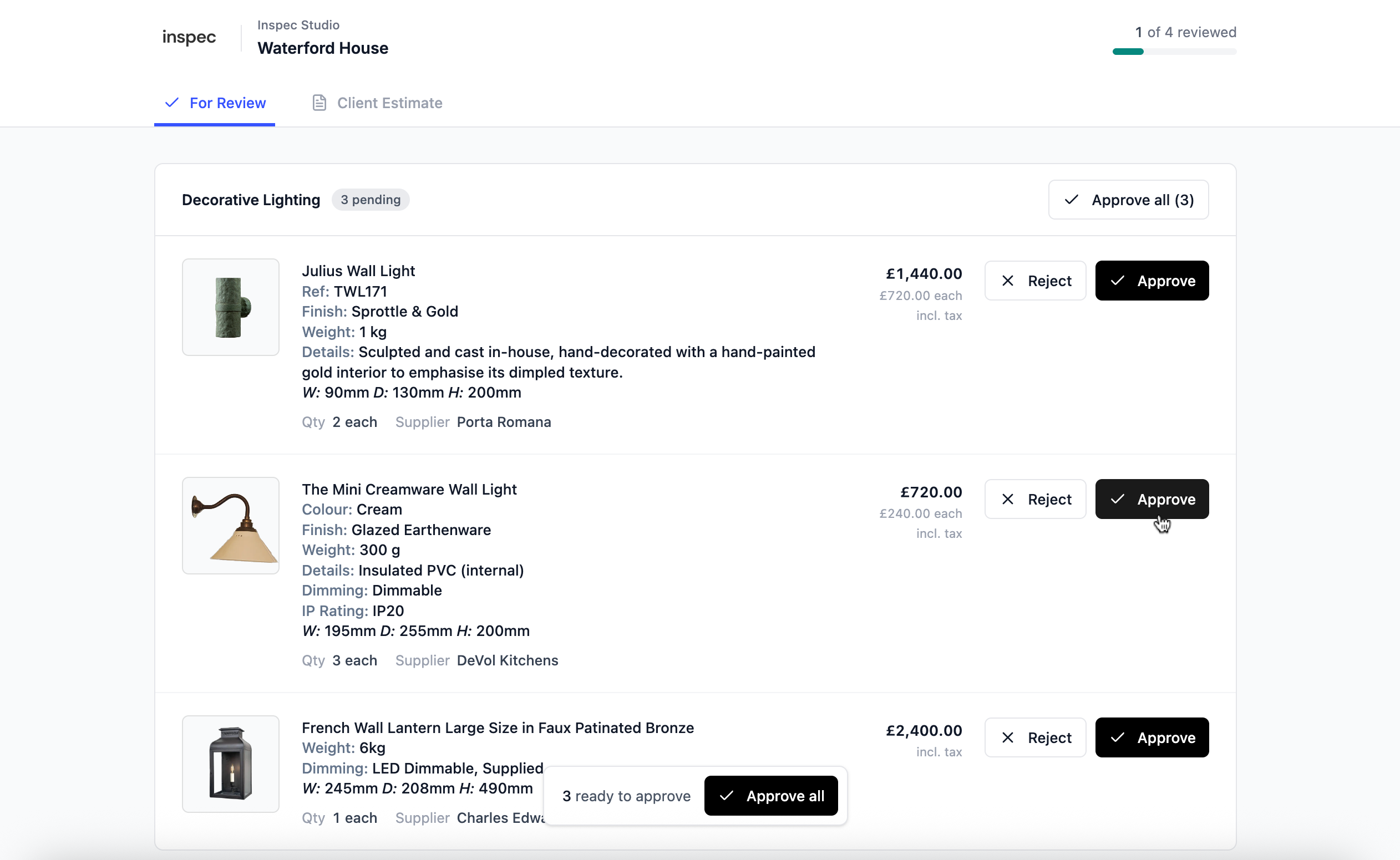
From the portal, clients can approve or reject items from the estimate that you've submitted for review, and leave comments against anything they'd like to discuss or amend. The portal also provides an organised breakdown of everything your studio will be ordering on their behalf (the Client Estimate), including product imagery, supplier information, and pricing.
To learn more about controlling information visibility on the portal, click here.
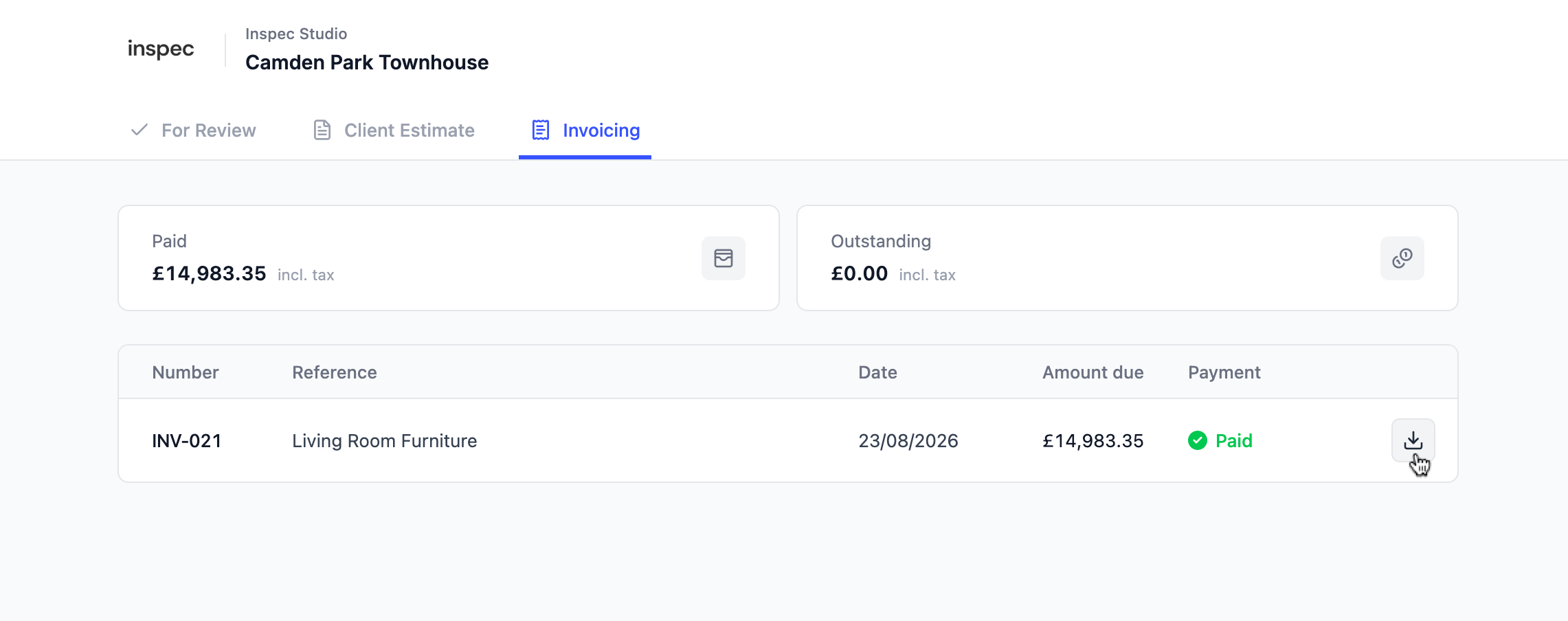
Once you start sending invoices to your clients, sent invoices will also be available at any time on the Client Portal. Here your clients can see the status of their invoices, their outstanding balance and total spend so far.
It's a simple, professional way to keep clients informed and involved throughout the project.
The Client Portal is only available for sharing client estimates at this time. Please get in touch if you'd like to provide feedback on our Client Portal feature.
Where to find the Client Portal
The Client Portal can be enabled from the Estimate tab in your project.
To learn more about estimates, click here.
- Go to Estimate - Navigate to the estimate tab within your project and click on the Share Estimate button in the top right corner of your screen
- Enable Client Portal - At the top of the pop-up, toggle on the client portal to enable the shareable link
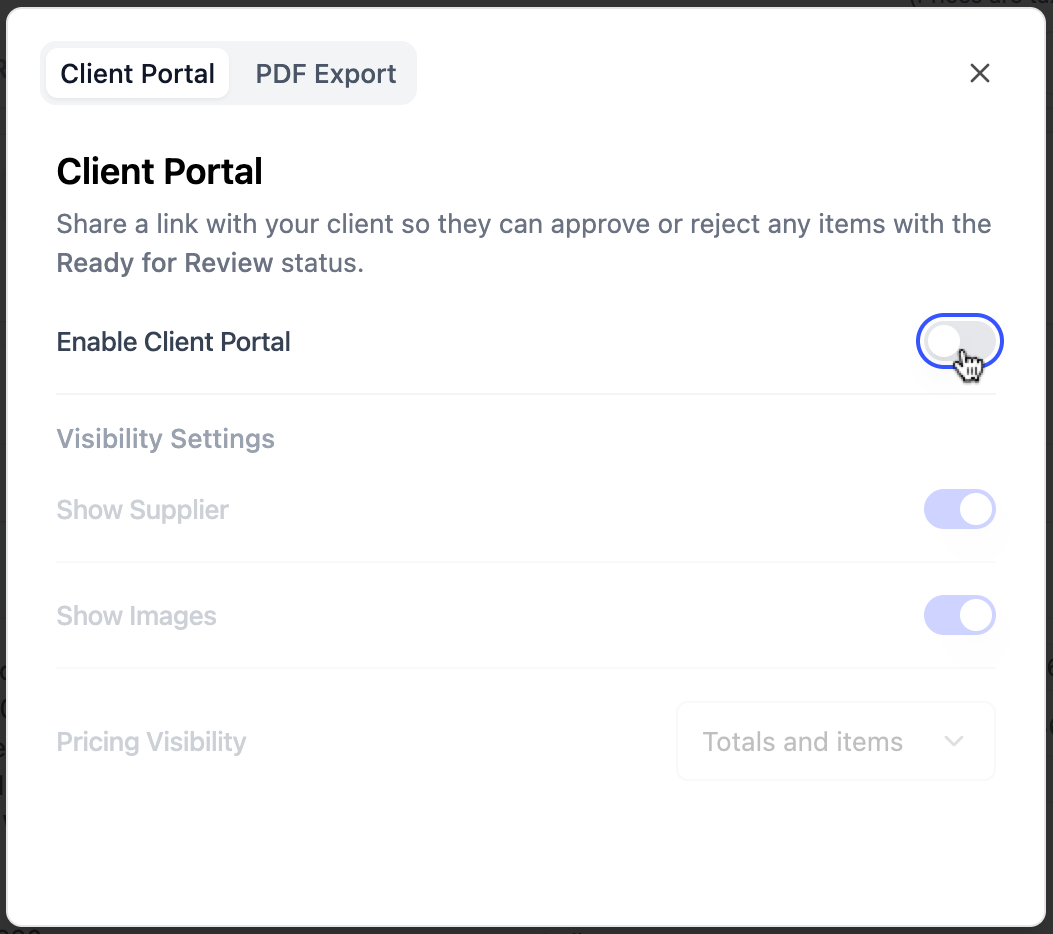
- Invite your client - Either send your client an invite to view the portal, or you can copy the link and share it with them outside of Inspec
Estimate visibility control
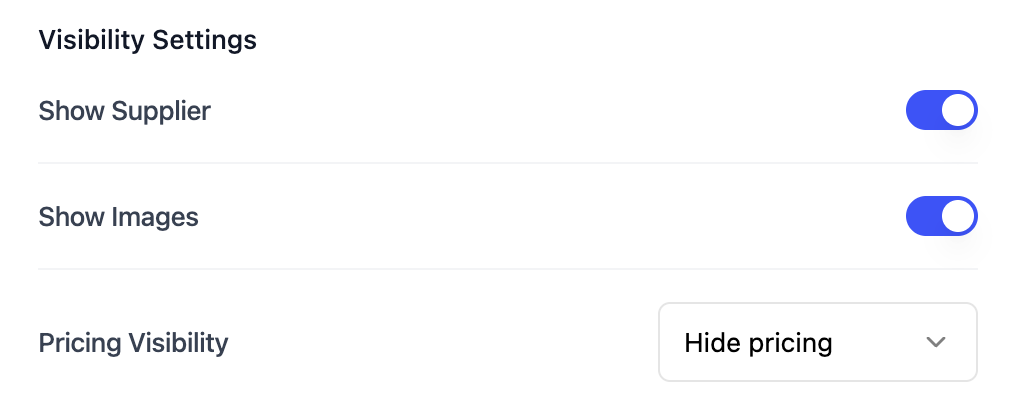
You have full control over what your clients can see on their estimate. You can easily hide specific product information or hide sensitive details, like supplier contact information, product imagery, or pricing. This ensures your clients only see the relevant information, protecting your privacy and ensuring your clients cannot perform their own product search to compare pricing.
Enable your Client Portal to see the below visibility settings.
Requesting client approvals
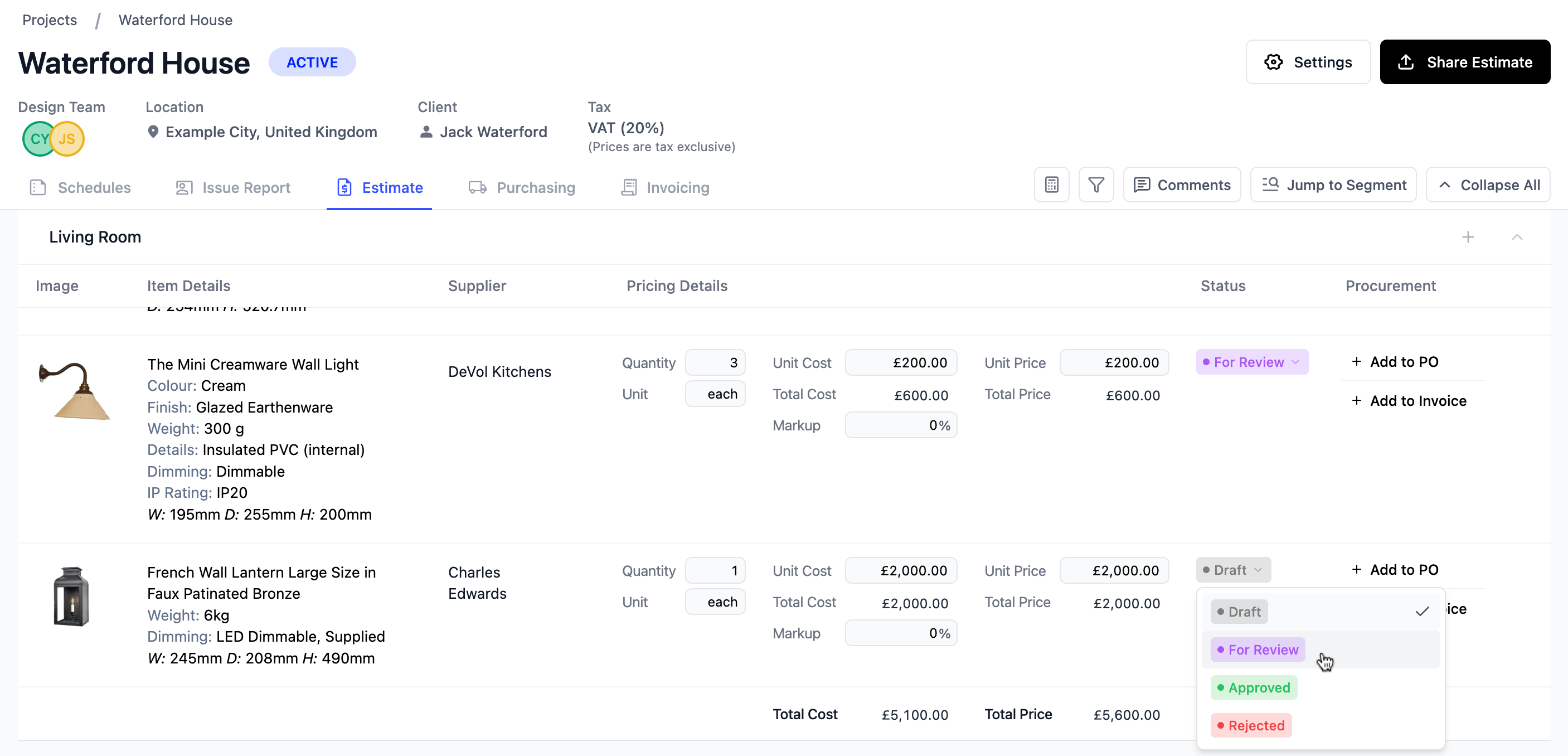
You can send individual line items on your estimate to the Client Portal for your client to review by updating the status of that line item to For Review on your estimate. Once marked, the item will appear in the client's portal ready for them to action.
From the portal, your client can either approve or reject each proposal.
To learn more about comments on estimates, click here.
Every decision made in the Client Portal is automatically time-stamped, so you always have a clear record of when items were approved or rejected. This is particularly useful for tracking the progression of decisions throughout the project and protecting yourself should any disputes arise later.
Once a client has made a decision, the status of the line item on your estimate will update automatically to reflect their response - either Approved or Rejected - so your estimate always reflects the latest position without any manual updating required.
You will always receive a notification when clients have made decisions on the portal. You can see your notifications by clicking on the bell in the sidebar.
Client comments
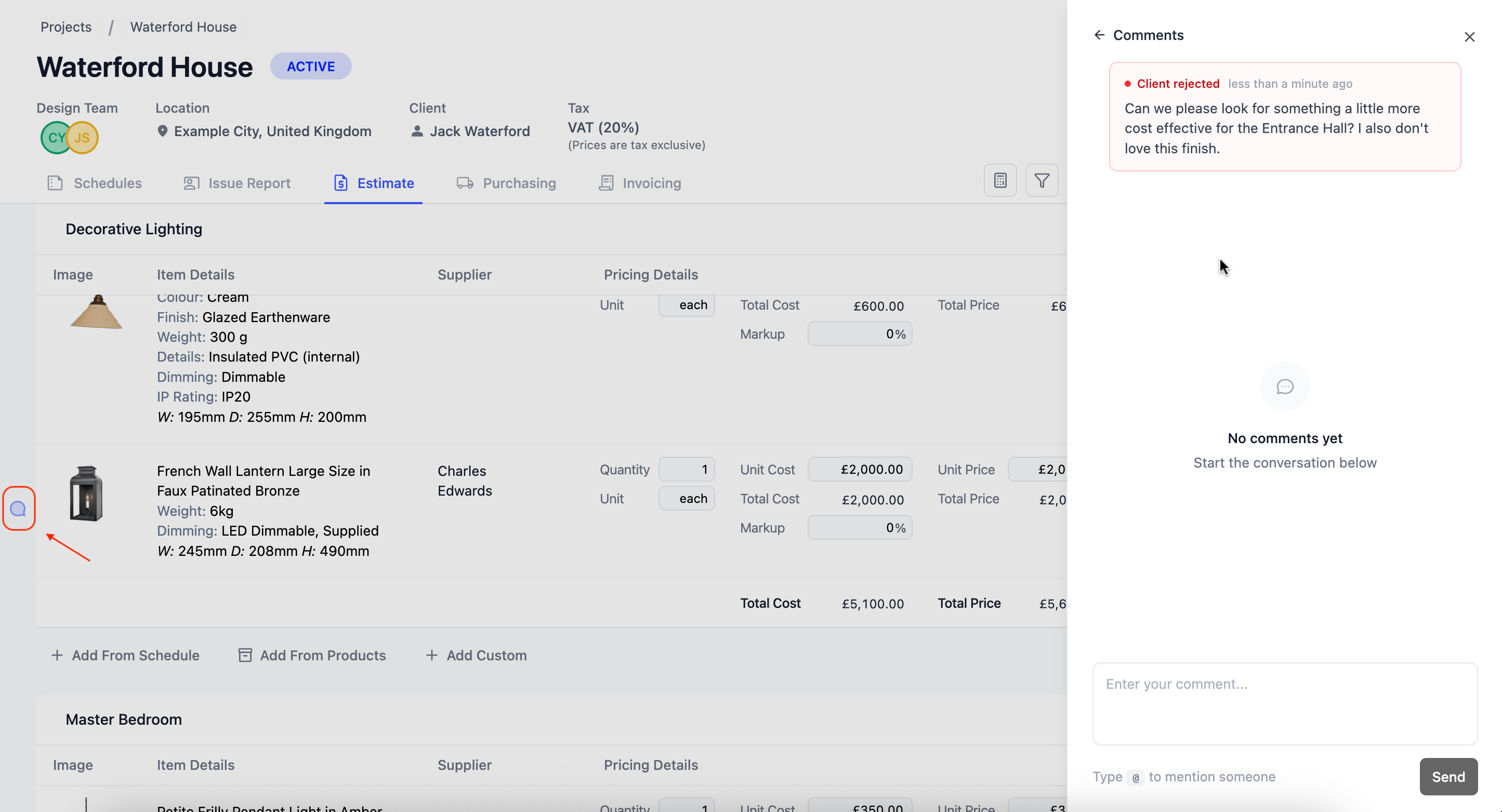
If an item is rejected, the client can leave a comment explaining their decision or suggesting amendments. This keeps all feedback in one place and tied to the relevant item. These comments will be available in the Comments section of your estimate.
At this time, you cannot respond to your client's comment through Inspec. You can only keep notes internally between your design team members.