Getting Started with Inspec
Learn the basics of Inspec and get your first project up and running.
Intro to Inspec
Inspec has been designed by industry professionals to be user-centric, frictionless and integrated seamlessly into any design studio's daily workflow. Unlike Excel which forces you to work around its limitations, Inspec streamlines your workflow with intuitive, visually appealing interfaces designed specifically for professionals in the A&D industry.
Making the switch from spreadsheets is simple, and getting your studio set up and ready to work will take very little time!
Setting up your company, branding & design team
Company details can initially be added during sign up, including your timezone, currency, default unit of measurement and studio logo.
Company admin users can make changes to these details and design team members at any time under the Company Settings & Team Members tabs respectively.
To access these settings, click your name on the side bar.
Company Settings tab
Update company details such as logo, PDF export font (to suit your preferred branding), timezone or default unit of measurement.
Uploading your logo is important to ensure your branding is applied across the platform and included on all schedule documents/PDF exports.
Procurement & Financials tab
Configure your tax preferences, set your default Estimate disclaimer, and manage Invoice preferences.
Setting a default tax rate is essential if you plan to use any of the Procurement or Pricing features on the platform.
To learn more about tax on Inspec, click here.
Team Members tab
Invite new team members, update roles, remove existing members or resend any invites.
Learn more about adding & removing team members.
Billing & Licences tab
Update your payment details, view previous invoices or manage your payment plan.
Onboarding
Onboarding runs the user quickly through steps to best learn how to navigate the app. The screen will automatically be replaced with the user's home dashboard once all steps have been completed.
Home Dashboard
The home dashboard is where you will find quick access to any recently used files, as well as a brief overview of recent time tracking and company-wide activity.
Overview of the side bar
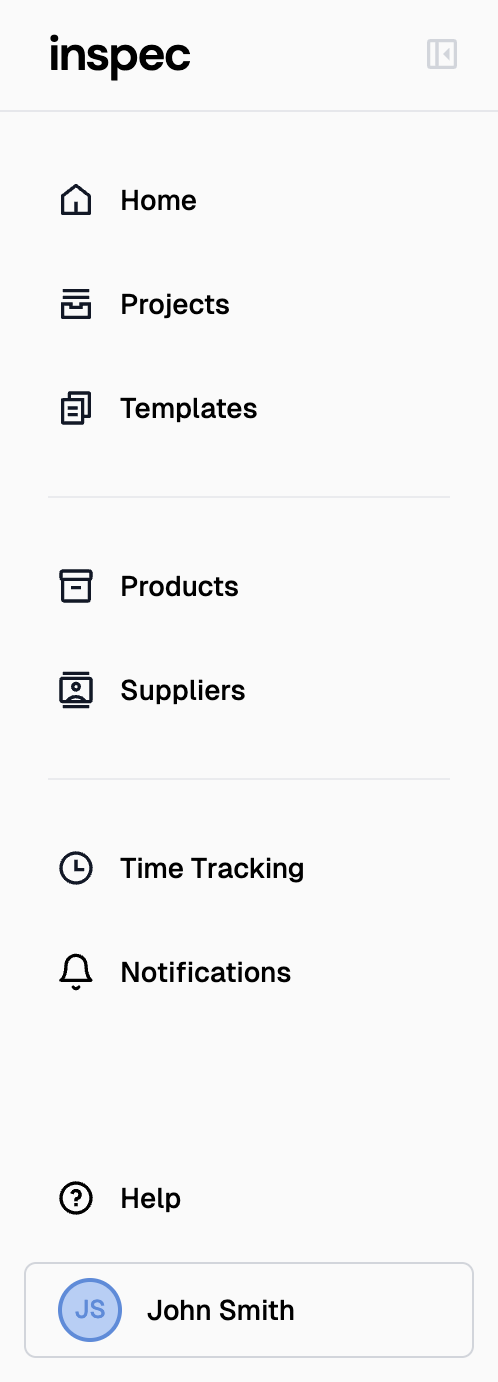
The side bar is where you can navigate to your projects & schedules, templates, products, suppliers, time tracking and user/company settings, as well as access your notifications.
Clicking help will provide useful, contextual articles based on the page you were on when the button was pressed. If none of the articles are helpful to your situation, then you can always contact us directly and our support team where we can typically respond within 24 hours.
You will also find a link to download the Google Chrome extension for our Web Clipper which is a very useful tool for specifying directly from supplier websites. For more information on Web Clipper click here.
The side bar can be minimised by clicking the button in the top right corner of the bar itself, and re-opened with the same button.
Updating your password and settings as a non-admin user
You can update your user settings and password by clicking on your name in the bottom left corner of the side bar. All changes made will be saved automatically.
- Open account settings — Click on your name in the sidebar and click on Account Settings.
- Update your profile — Update your user colour or upload an image.
- Reset your password — Reset your password here.
- Time tracking preference — Update your preference for time tracking.
- Email preferences - Update your email notification preferences.
Managing billing preferences
Inspec offers both monthly or annual subscription payment plans for companies to choose between. Company admin users can update the payment plan preference in the Billing & Licences tab at any time.
Learn more about managing billing preferences.