Comments & Notifications
Learn how to use comments and notifications to collaborate effectively with your team in Inspec.
Guide to commenting
The commenting feature was designed to help your team collaborate more effectively and keep projects moving smoothly. With real-time commenting, you can cut down on lengthy email chains, keep track of who's doing what, and ensure schedule updates don't slip through the cracks.
Comments can be made easily across any schedule or estimate, and are particularly beneficial to design teams working on projects together. Any time a comment is made against a schedule or estimate, the design team members on that project will each receive a notification, so everyone is kept in the loop with schedule updates and design evolution.
To turn off notification emails for comments, go to your Account Settings.
Comments on Schedules
You can add comments to any row in your schedule, either as general notes for your team or directed to specific team members who need to take action.
-
Open the comment panel — When working in your schedule, hover over a row and click the Speech Bubble Icon on the left.

-
Write your comment — A comments bar will appear on the left side of your screen. Begin typing your comment in the text box at the bottom and click Send when complete.
-
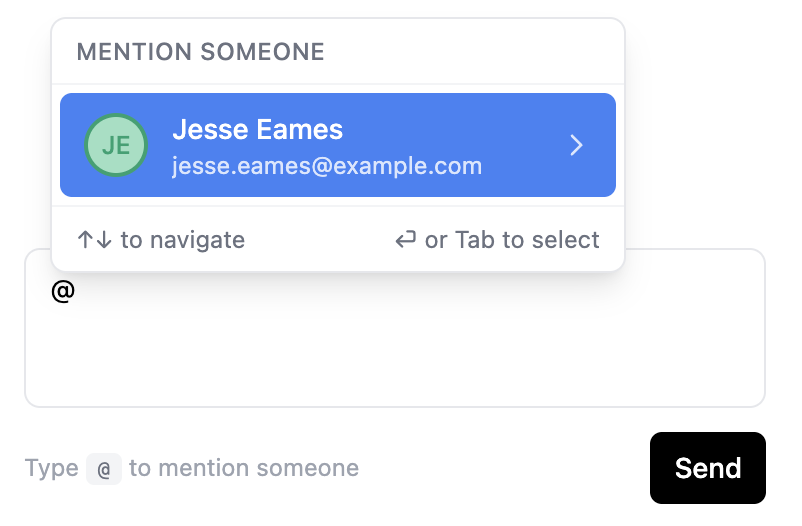
Mention team members — To mention another user in your comment, type @ to select the design team member from that project team you would like to mention. It is also possible to mention a user who is not a part of the project design team. The mentioned user will receive an email and notification.
Use up/down arrows to navigate through the list of users and press enter to select.
-
Notifications sent automatically — Users in the design team for that project receive a notification on Inspec when comments are made, regardless of whether they have been mentioned or not. If you have been mentioned in the comment, you will also receive an email. Notification emails can be disabled in Account Settings.
Replying to and resolving comment threads
If another user mentions you in a comment, you will receive both an email and a notification on Inspec alerting you of the comment that has been made and prompting you to respond.
You can reply to or resolve a comment created in a schedule even if you haven't been mentioned.
Manage and view schedule comments
There are three ways to view and manage comments:
- Notifications Tab – Click the bell icon in your sidebar to view all comment notifications.
- Comments Tab – Access the schedule specific comments directly from your schedule page.
- Speech Bubble Icon – Click the speech bubble icon beside any row in your schedule. This icon will be filled in blue if an active comment thread exists on that row.
Managing comment threads
Once you open a comment thread, you can:
- Reply to existing comments
- Resolve comments to mark them as complete
- Create new comments by typing in the text box and clicking Send
Comments on Estimates
You can add comments to any line item in your estimate, either as general notes for your team or directed to specific team members who need to take action.
-
Open the comment panel — When working in your estimate, hover over a row and click the Speech Bubble Icon on the left.
-
Write your comment — A comments bar will appear on the left side of your screen. Begin typing your comment in the text box at the bottom and click Send when complete.
-
Mention team members — To mention another user in your comment, type @ to select the design team member from that project team you would like to mention. It is also possible to mention a user who is not a part of the project design team. The mentioned user will receive an email and notification.
Use up/down arrows to navigate through the list of users and press enter to select.
-
Notifications sent automatically — Users in the design team for that project receive a notification on Inspec when comments are made, regardless of whether they have been mentioned or not. If you have been mentioned in the comment, you will also receive an email. Notification emails can be disabled in Account Settings.