Intro to Spec Sheets
Learn about the purpose of spec sheets, and how to create and manage them on Inspec.
How spec sheets differ from schedules
Spec Sheet’s are designed purposefully to display the technical information of an individual product in a concise format, suitable to send to your clients and trades. Unlike a schedule, which is essentially a running list of various specification proposals for a project, the data on a spec sheet is contained to one page per product.
You can attach multi-page PDF files to a spec sheet including technical drawings, installation guides etc.
You can also hyperlink your spec sheet to the product online.
Generating spec sheets from products
Inspec Spec Sheets are unique in their formatting and export style, which means you cannot customise the layout of a spec sheet the way you can for a schedule. You can adjust the information on a spec sheet by editing what’s saved against your product. To learn more about products, click here.
- Go to Products - Find the product you want to produce a spec sheet for
- Open view mode - Click on the product tile to open a view mode pop-up
- Generate the Spec Sheet - Click the Export Spec Sheet button in the bottom left corner of the pop-up
- Open downloaded PDF - The Spec Sheet PDF will automatically save to your downloads
Spec sheets will always export individually (page by page), when generated from Products.
Creating spec sheet packs from your schedules
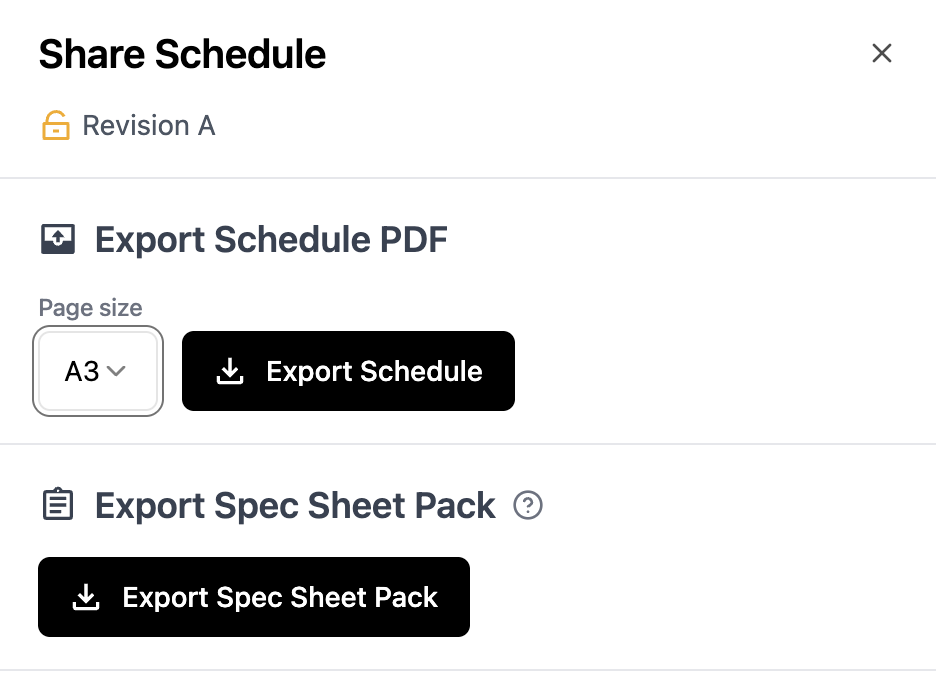
A Spec Sheet Pack is an automatically generated PDF document including all products in your schedules, including a cover page similar to your schedule exports. If you have a schedule with products saved in your product catalogue, you can now produce a professional, combined PDF containing every spec sheet for those products in just one click.
-
Click the Share button in the top right corner of your screen when working on a schedule
-
Click Export Spec Sheet Pack from the selection of share options
-
Your Spec Sheet Pack will be automatically saved to your downloads
To customise the information on your Spec Sheet Pack cover page, you will need to update the export settings for that project. To learn more about customising cover pages, click here.
Note: Spec Sheet Packs
Only products which are saved in your Product Catalogue will have a spec sheet included in the Spec Sheet Pack. To learn more about creating products from schedules, click here.
Why use spec sheet packs
Spec Sheet Packs save you hours of manual work by eliminating the need manually export individual spec sheets for items in your schedules. Exporting your Spec Sheet Pack will ensure nothing gets missed and every specified product has complete, up-to-date documentation pulled directly from your product catalogue, ready to send to contractors or clients.
Adding attachments to your spec sheets
If you've added attachments to a product in your catalogue, these will automatically be linked to the spec sheet generated from that product. This is a convenient way to provide contractors and consultants with relevant technical drawings, installation guides, or other product documentation. Recipients can easily access attachments from the exported PDF by clicking on the document icon next to the product name, which allows them to download the files directly.
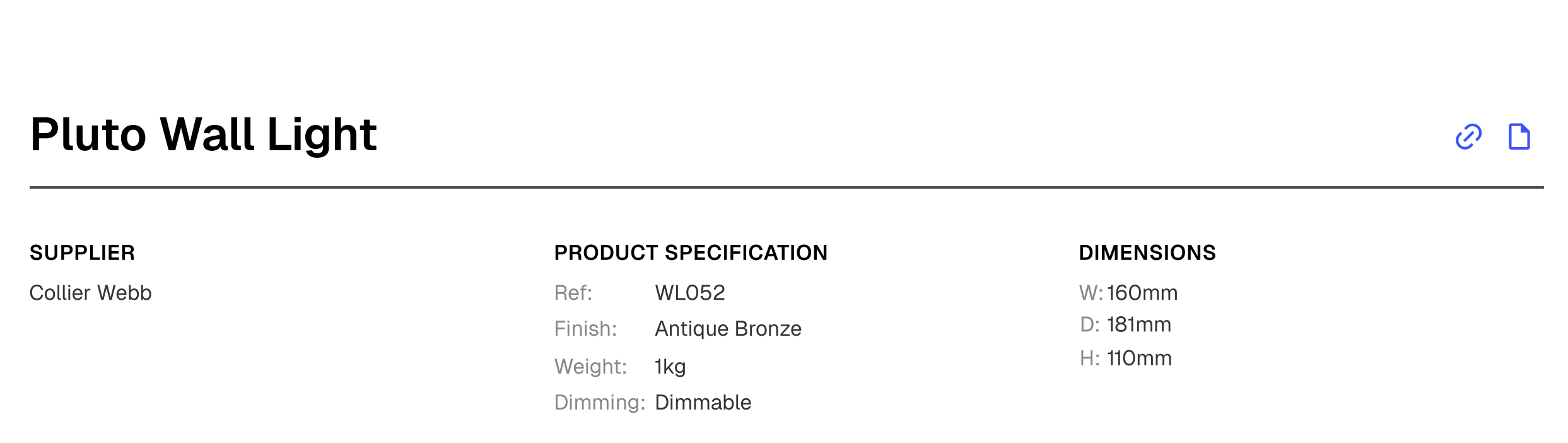
Attachments can be added in Product Edit Mode, or alternatively directly against the row in your schedule. To learn more about attachments in schedules, click here.
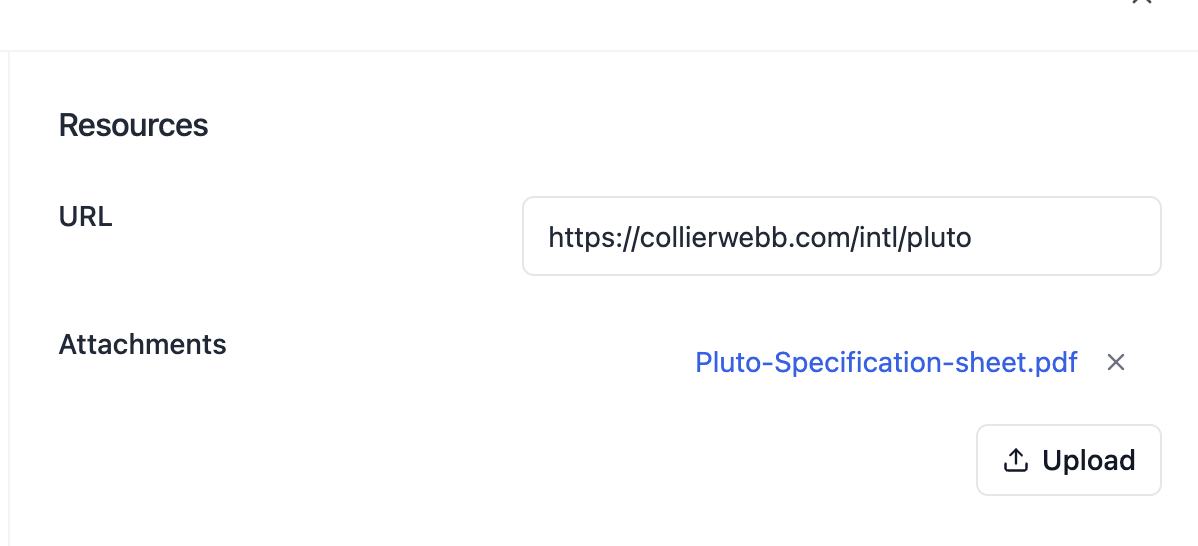
Adding hyperlinks to your spec sheets
Adding hyperlinks to your spec sheets can be a useful tool to reference the product online or to provide other valuable information on the specification.
Only one hyperlink per product can be added. You can add this to a row in your schedule prior to creating a product, or when you create your product from scratch in the Products tab by clicking + Add Product.
- Hover over the relevant row in your schedule and click on the grip icon to the left of the section tile
- Click on the Hyperlink option from the dropdown menu
- Paste the website URL and click save.
- If you’re creating your product from scratch in the Products tab, follow the prompts to add a URL.