Data Migration
Learn how to migrate your existing data to Inspec.
What is Data Migration & Getting Started
Moving to a new platform shouldn't mean starting from scratch. Inspec's Data Migration tools are designed to bring your existing work with you, helping to convert your schedules, product catalogues, and supplier information directly into Inspec, without the need for manual re-entry.
To learn more about user roles, click here.
Whether you're migrating from a spreadsheet or another design platform, we're here to make sure the transition period to Inspec is as smooth (and quick) as possible.
Where to find the Data Migration tools
All data migration tools can be accessed by admin users from your settings page. If you are not a company admin user, but need to migrate data into Inspec, you will need to request that an admin user updates your role through the team members tab.
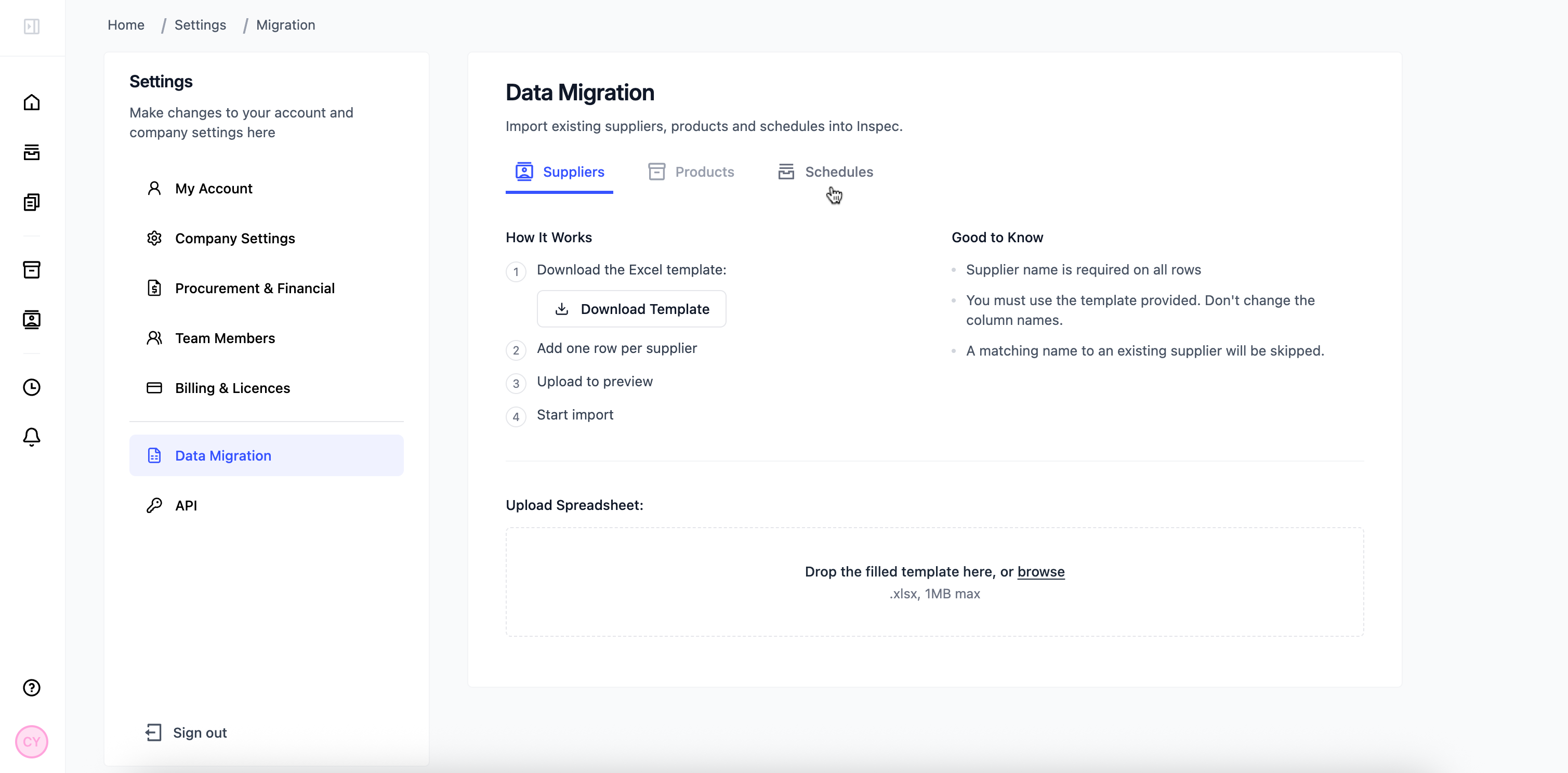
Migrating schedules into Inspec
Before you migrate any schedules into Inspec, you must have one or more templates saved in your Template Library. To learn more about creating templates, click here.
Follow the prompts on screen to seamlessly migrate your existing schedules into Inspec.
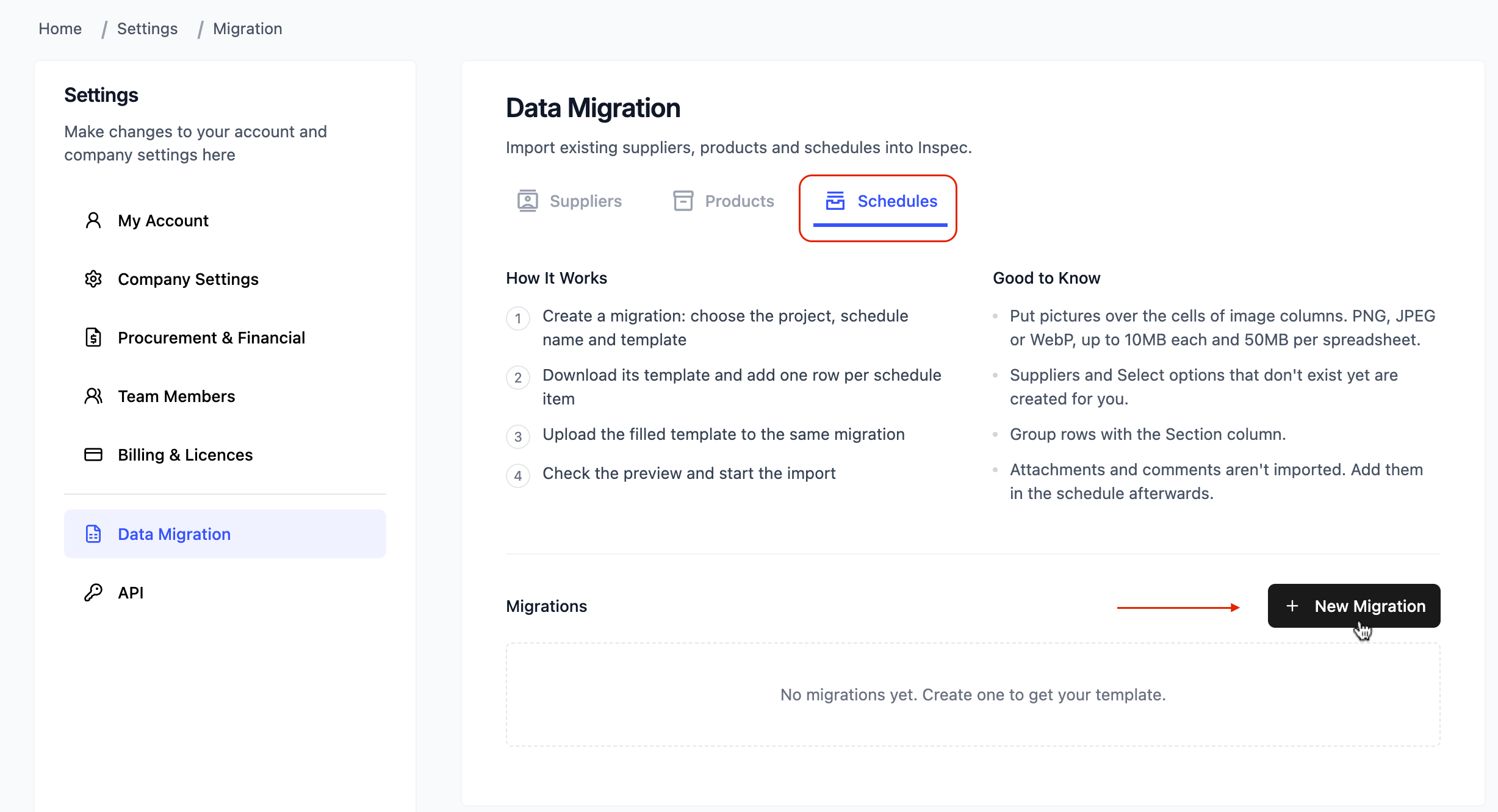
If you are migrating a schedule from another design software, such as Programa, Design Spec or Studio Designer, it may be easier to first export this schedule as an .xsls file. To save time, you could use AI to assist in populating your Inspec migration template based on the information in your existing schedule. Always double check any work produced by AI for mistakes or inconsistencies.
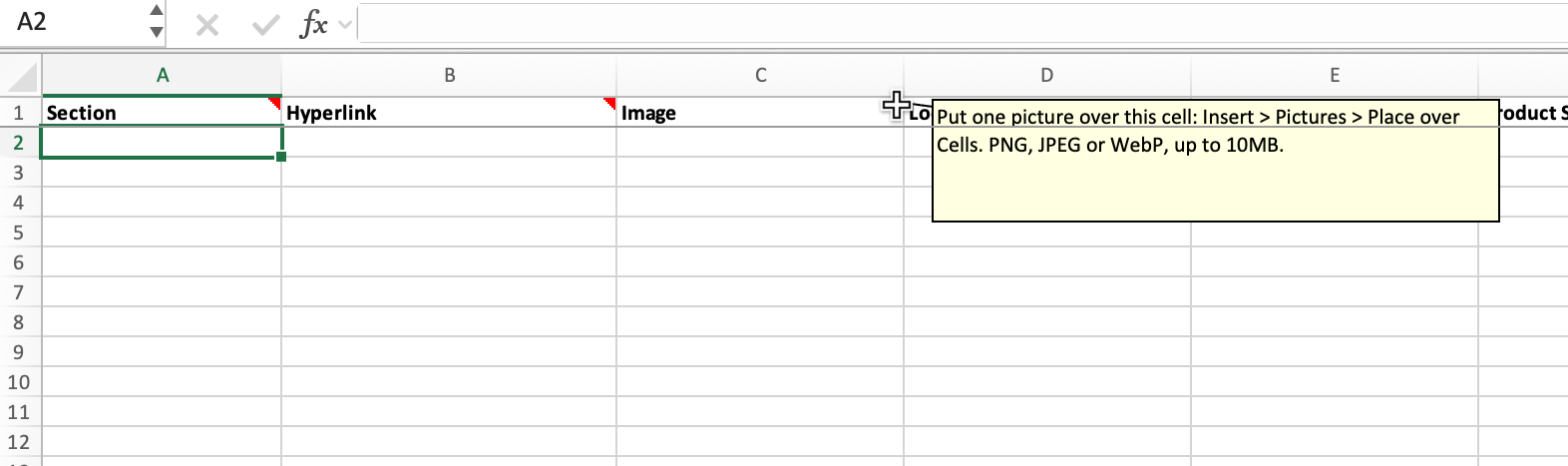
You cannot alter the columns on the downloadable Inspec migration template file, this will cause errors when re-uploading. If you wish to change any of the columns, you will need to first edit your template on Inspec, then re-download the migration template.
You will find helpful tips on the spreadsheet if you hover above the column headings. Always feel free to contact our support team if you have any trouble populating the template.
To learn more about how projects and schedules are structured in Inspec, click here.
Migration & Revision Control
When migrating an existing schedule into Inspec, you may already be working on an advanced revision of that schedule. Rather than defaulting to Revision A as it would with a newly created schedule, Inspec allows you to specify which revision your migrated schedule should begin from.
Example: If your Excel schedule is currently on Revision C, starting from Revision A in Inspec wouldn't accurately reflect the true history of your project. By setting the correct starting revision during migration, your schedule remains consistent with the work already completed and ensures your revision history is accurate from the moment you begin using Inspec.
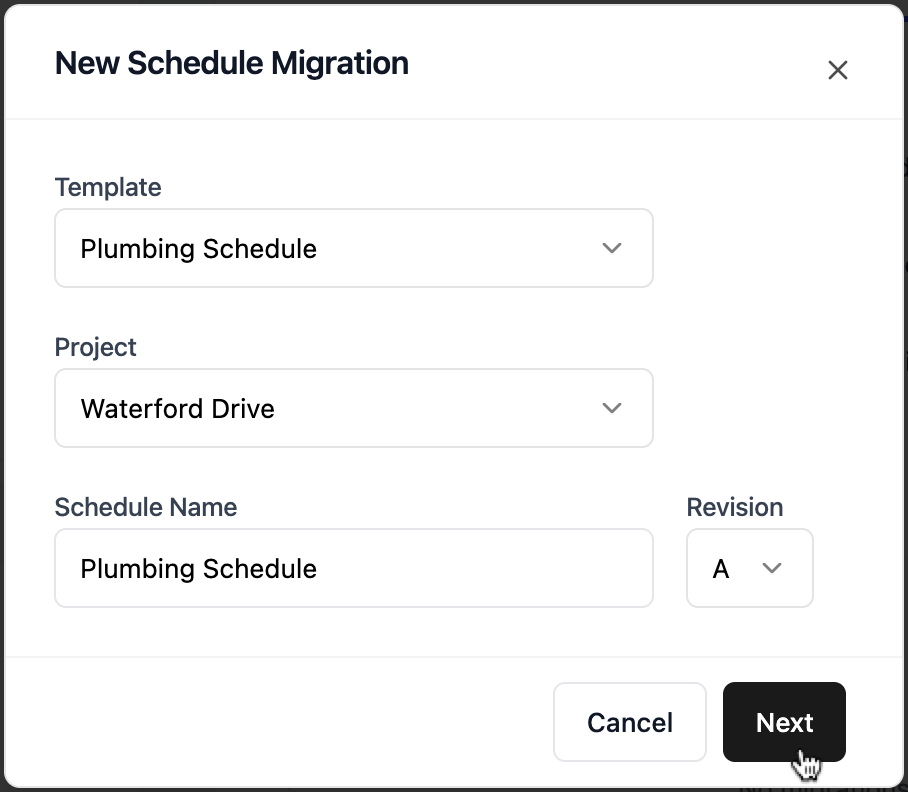
- Start new migration — Click + New Migration to start the import process.
- Select a template — Choose from your list of saved templates, Inspec will automatically generate an .xsls file for you to populate.
- Project & Schedule details — Select your project and give your schedule a name, then confirm the starting revision for your schedule.
- Download Template — Click Next to download your custom template and start migrating your information across.
Points to note
The revision can only be set during the migration process and cannot be changed once the schedule has been imported.
Future revisions will continue sequentially from the revision you select (e.g. if you begin at Revision C, the next locked revision will be Revision D).
To learn more about Revision Control, click here.
Migrating products into Inspec
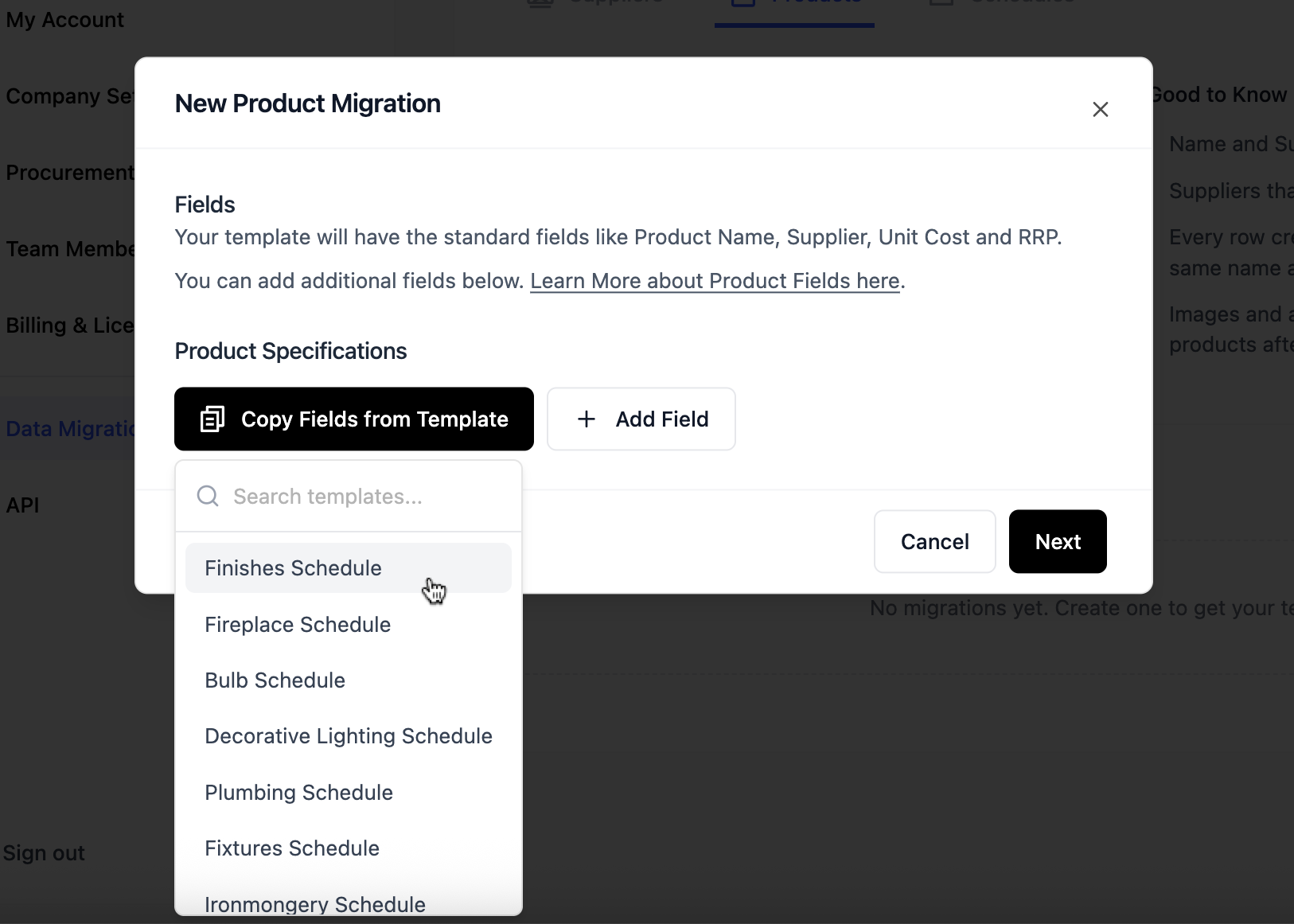
When adding products to your catalogue, we recommend basing them on one of your saved schedule templates. Because Inspec gives you complete control over your schedule fields, the information you need for each product will vary depending on how your templates are structured. Building your products around a template ensures that when it comes to adding them to a schedule, the fields line up correctly and the information maps across cleanly.
This is especially important when migrating products into your catalogue - using an existing template as the basis for your product information keeps everything consistent between your Product Catalogue and your schedules, saving you from having to manually adjust field mappings further down the line.
Migrating suppliers into Inspec
To import an existing list of suppliers, start by downloading our template which can be found under the Data Migration tab in your settings.
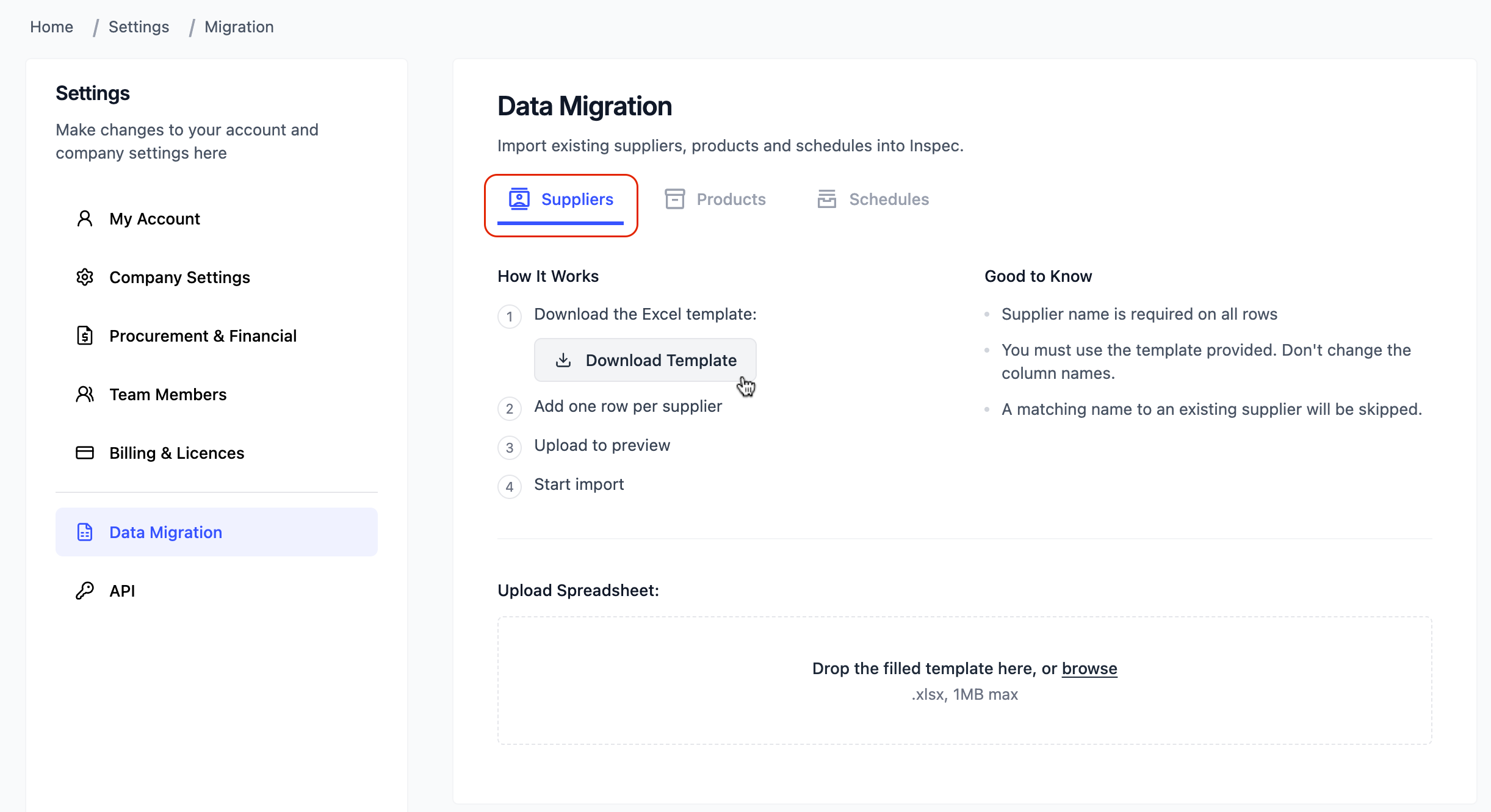
You can add as many suppliers as you like to this template, including information such as their email address, website, trade discount and address.
When you have finished populating the Inspec supplier migration template, simply reupload it and start the import process.
To learn more about supplier databases on Inspec, click here.